
How to use Masiya
This guide walks you through every part of Masiya, from the first setup to logging on your Apple Watch. Each section shows the real screen and explains what to tap.
Contents
Getting started
Set up Masiya in a minute.
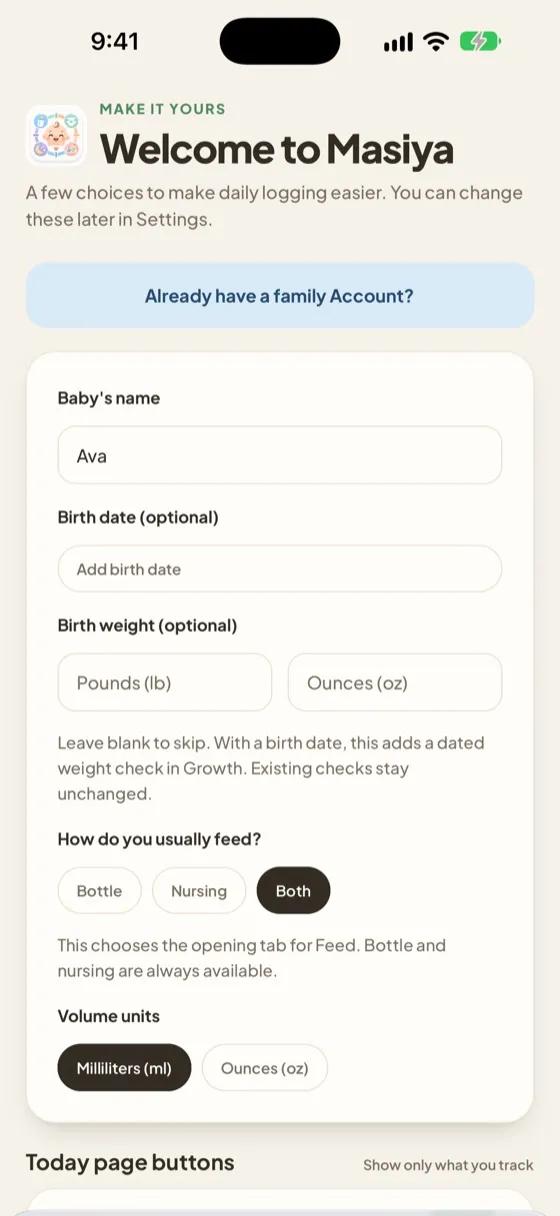
The first time you open Masiya, a short welcome screen asks a few questions. You can change every answer later in Settings.
Welcome to Masiya
- Type your baby’s name. It’s the only required field.
- Optionally add a birth date and birth weight. With a birth date, the birth weight becomes the first check in Growth.
- Choose how you usually feed: Bottle, Nursing or Both. This only picks which tab the Feed form opens on.
- Pick your volume units: milliliters or ounces.
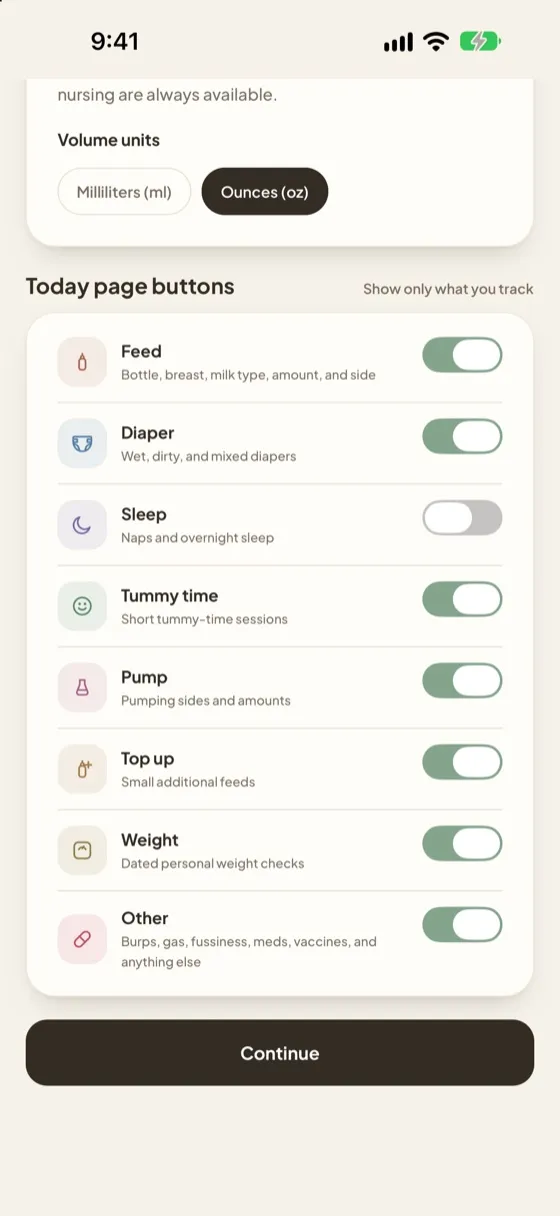
Today page buttons
Switch on only what you track. Feed, Diaper, Sleep, Tummy time, Pump, Top up, Weight and Other can each be shown or hidden. The first two that are on become the large buttons on Today.
Tap Continue, then Start tracking.
Already in a family? Tap Already have a family Account? at the top to sign in or join, and your shared history comes with you.
The Today screen
Everything about today, at a glance.
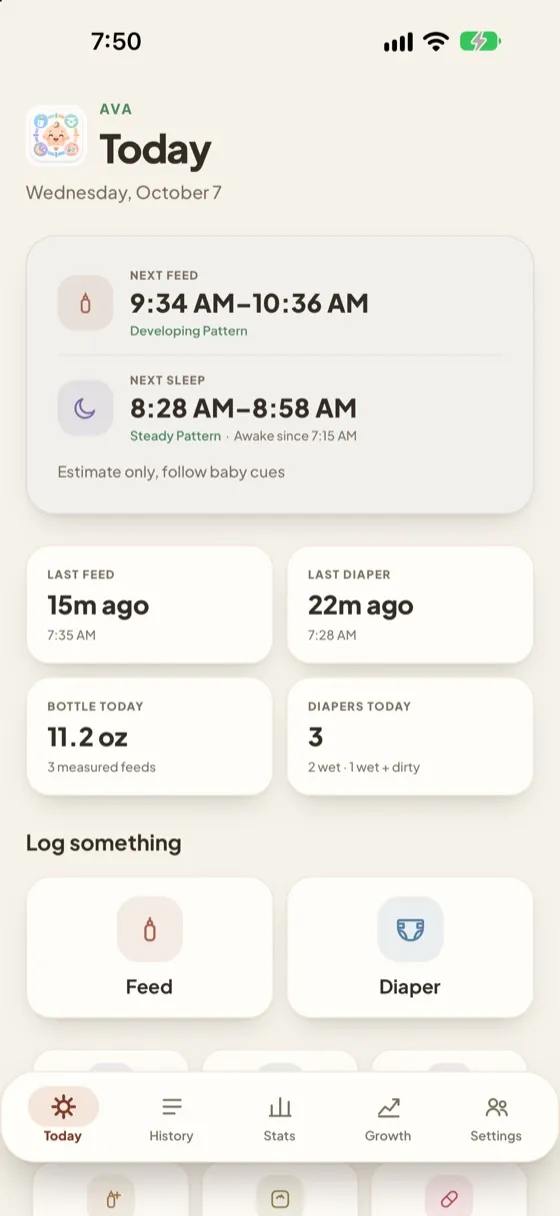
Today is the home screen. The floating bar at the bottom moves between Today, History, Stats, Growth and Settings.
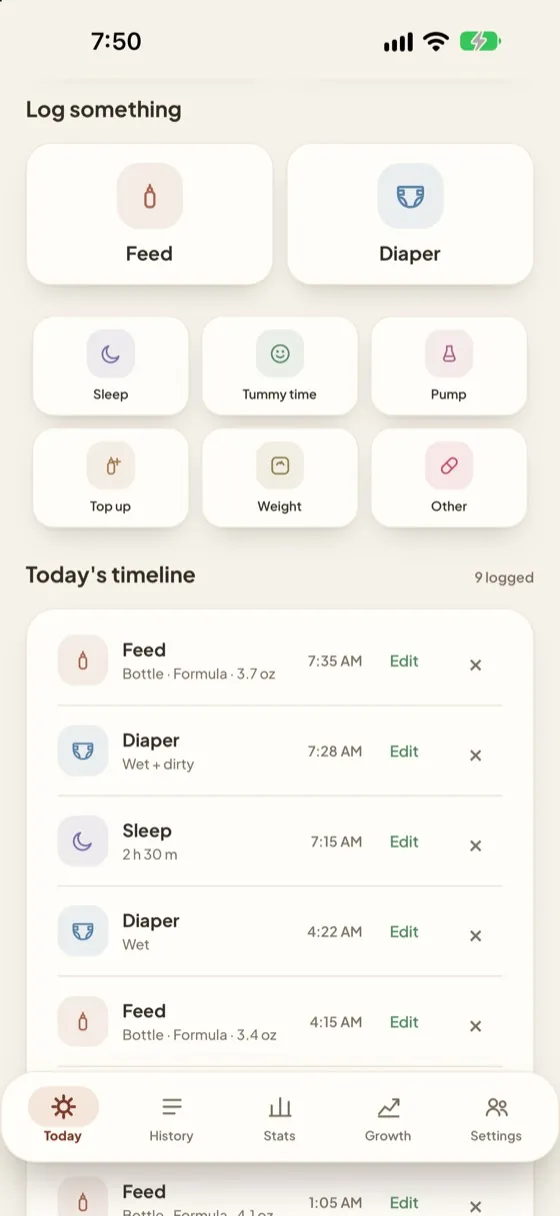
- Next feed and next sleep
- A time window for the next feed and nap, learned from the last 7 days of logs. Estimates appear once there’s enough history. Always follow your baby’s cues.
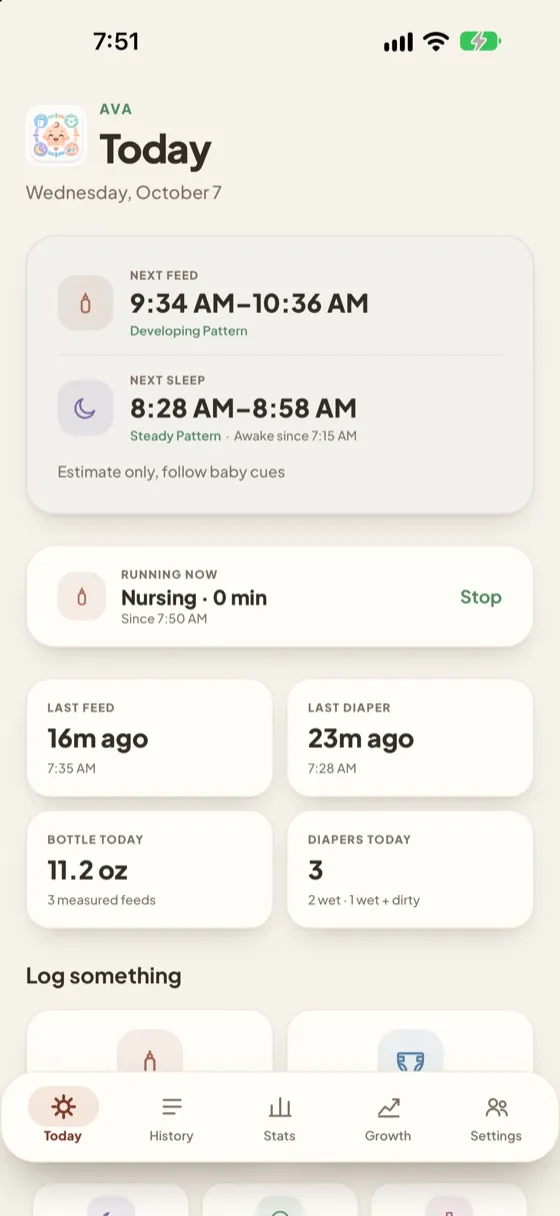
- Running now
- Any sleep, nursing or tummy time timer that’s running. Tap Stop to finish it.
- Summary cards
- Time since the last feed and diaper, today’s bottle total and today’s diaper count.
- Log something
- Tap a button to open its form. The two large buttons are your most used logs.
- Today’s timeline
- Every log from today, newest first. Tap Edit to change one, or × to delete it.
Logging a feed
Bottle or breast, in a few taps.
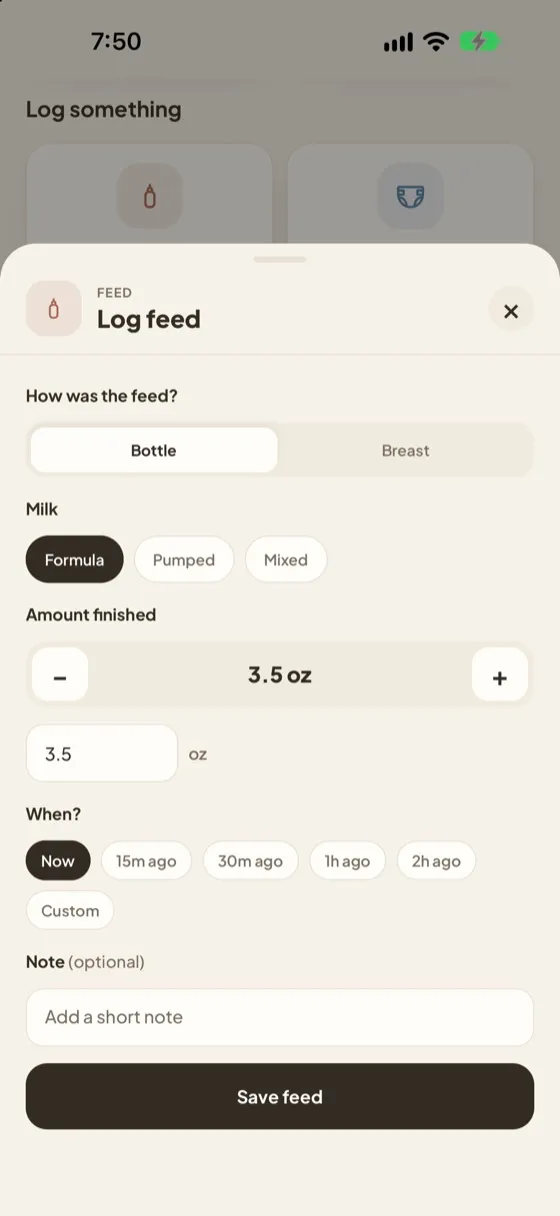
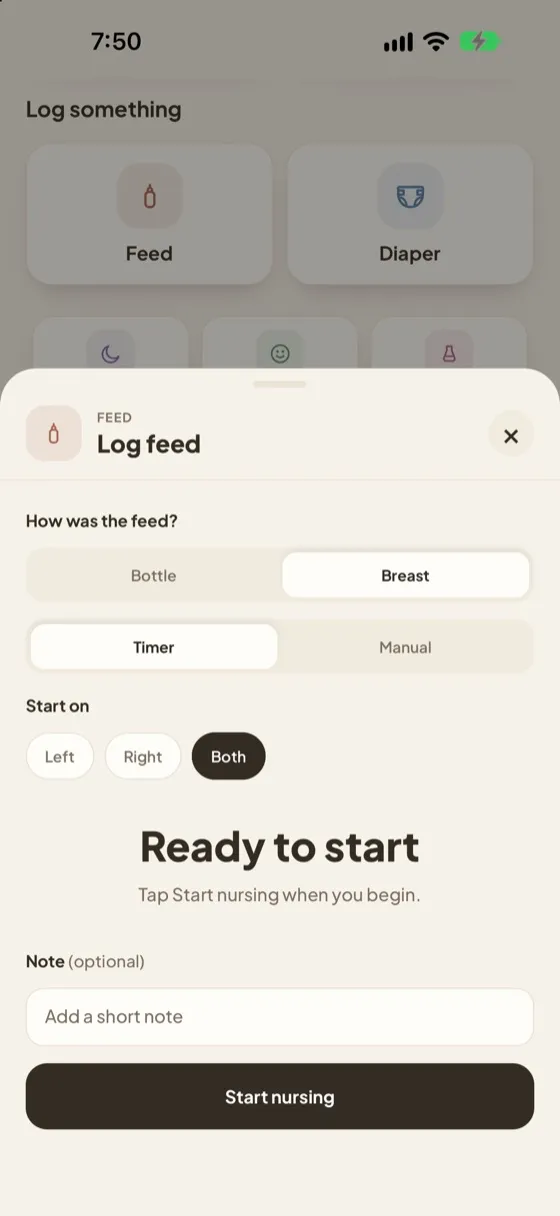
Tap Feed on Today, then choose Bottle or Breast at the top of the form.
Bottle
- Pick the milk: Formula, Pumped or Mixed.
- Set the amount finished with − and +, or type it.
- Choose When?: Now, a quick “ago” time, or Custom.
- Add a note if you like, then tap Save feed.
Breast
- Choose Timer (live) or Manual (after the fact).
- Pick the side to start on, then tap Start nursing.
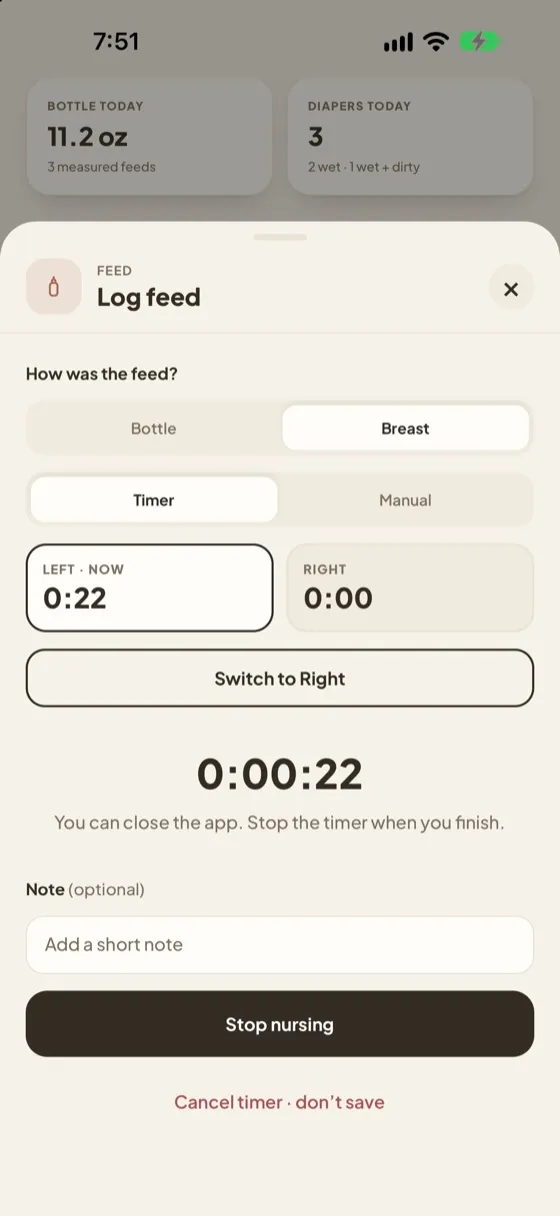
- Tap Switch to Right (or Left) to time each side.
- Tap Stop nursing when you finish to save it.
You can close the app. The timer keeps running. Started one by mistake? Tap Cancel timer · don’t save.
Diaper, sleep and tummy time
Quick logs and simple timers.
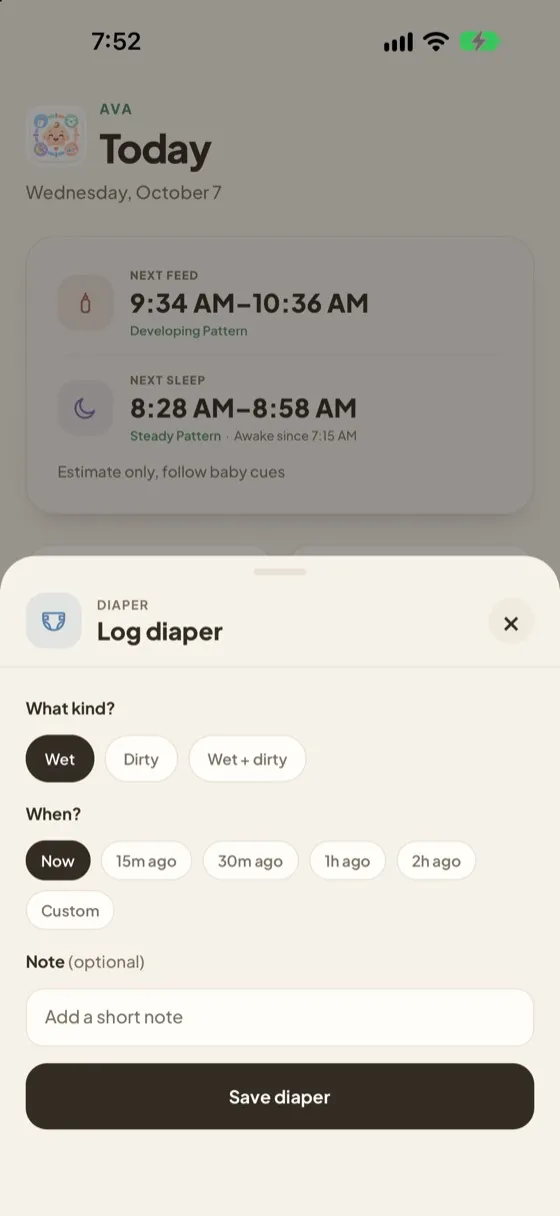
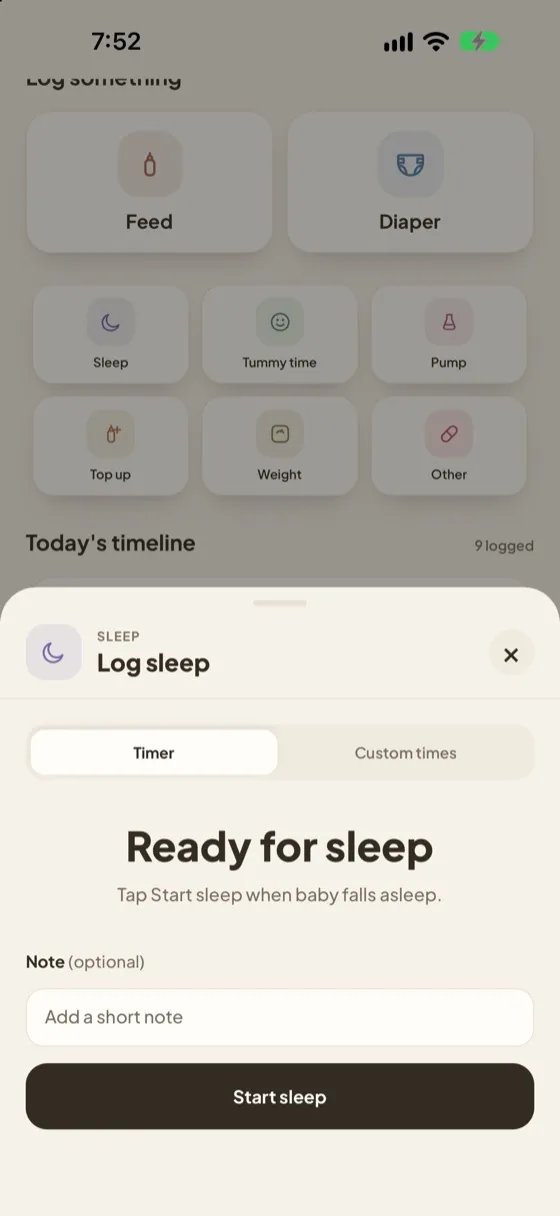
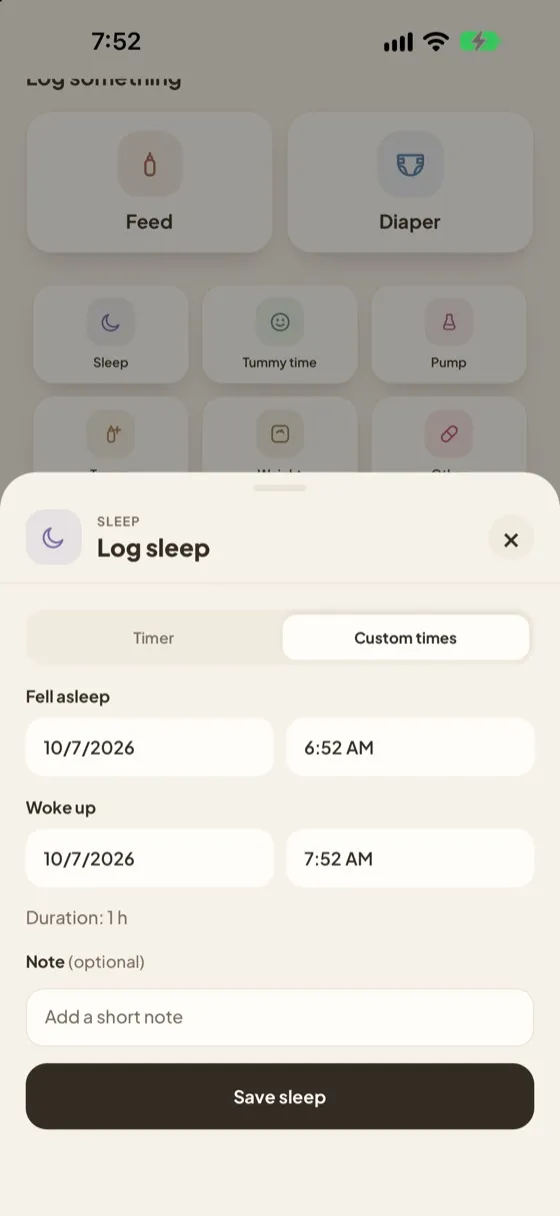
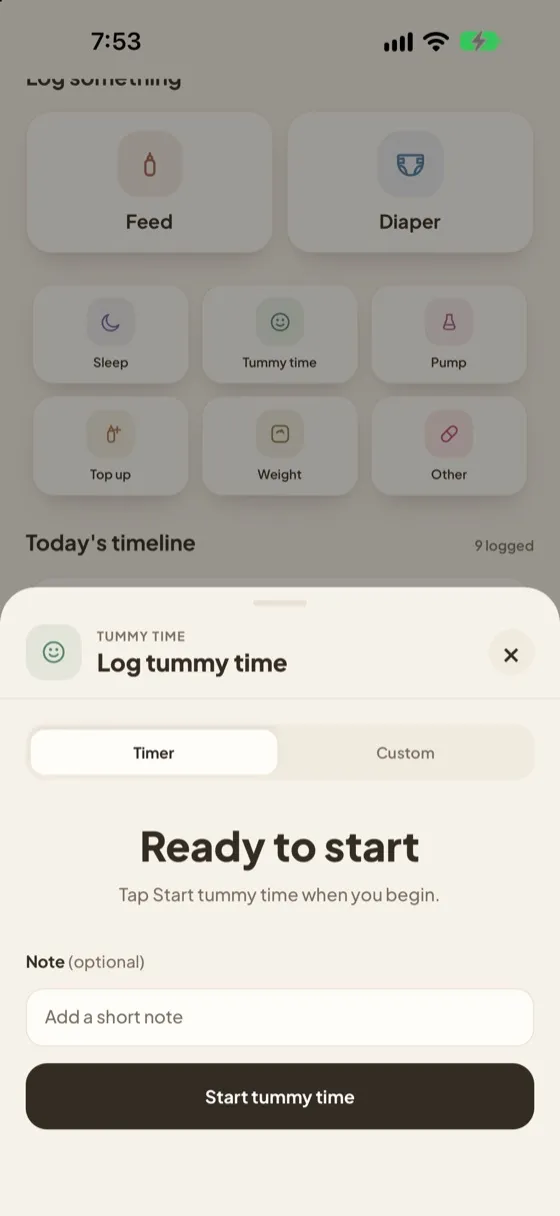
Diaper
Choose Wet, Dirty or Wet + dirty, pick when it happened, and tap Save diaper.
Sleep
Tap Start sleep when your baby falls asleep and stop it when they wake. Forgot to start it? Use Custom times to enter when they fell asleep and woke up.
Tummy time
Tap Start tummy time and stop it when you’re done, or choose Custom to enter the minutes.
Timers show up everywhere. A running timer appears on Today under “Running now”, on your Apple Watch, and on the iPhone Lock Screen.
Pump, top up, weight and other
The rest of your logs.
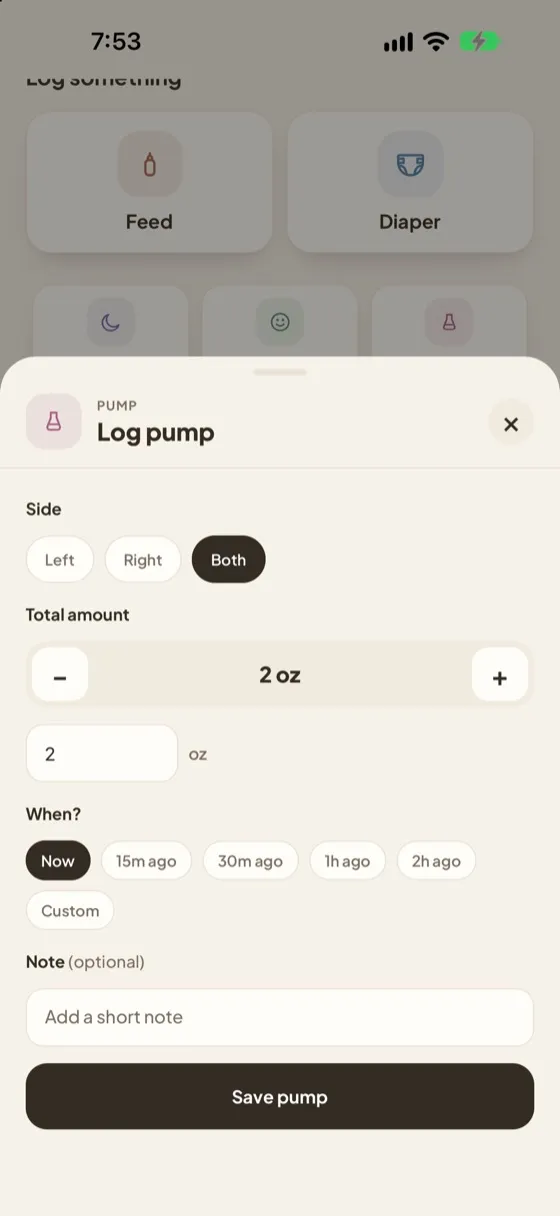
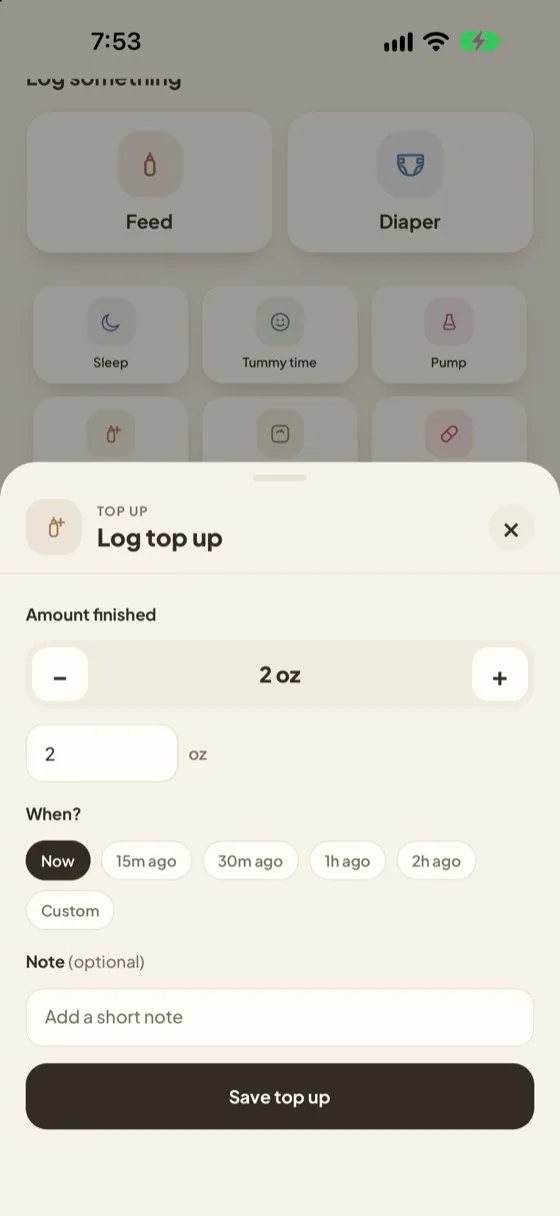
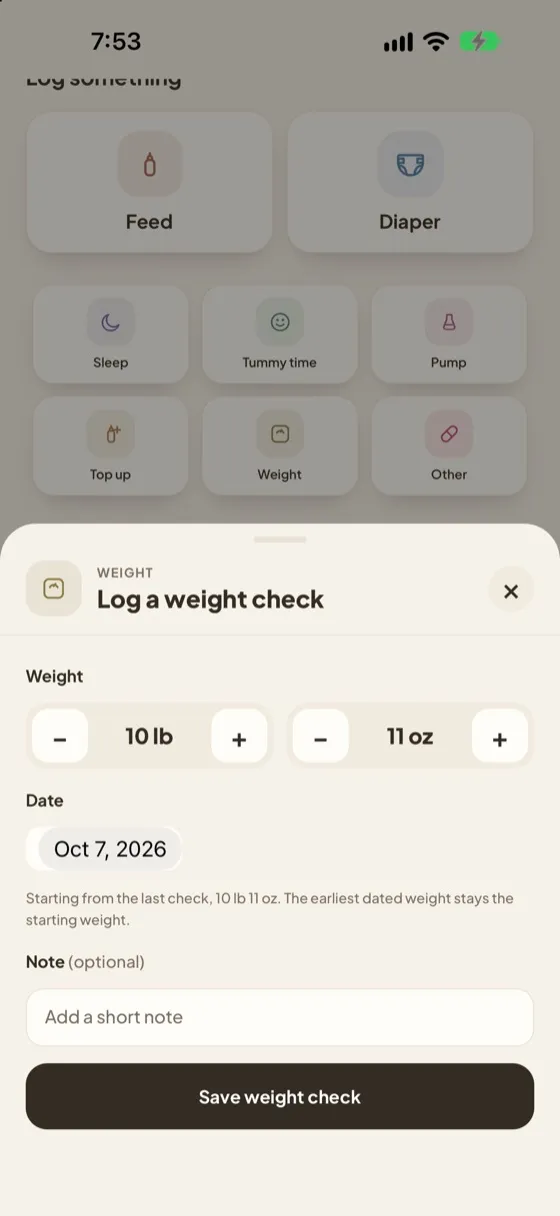
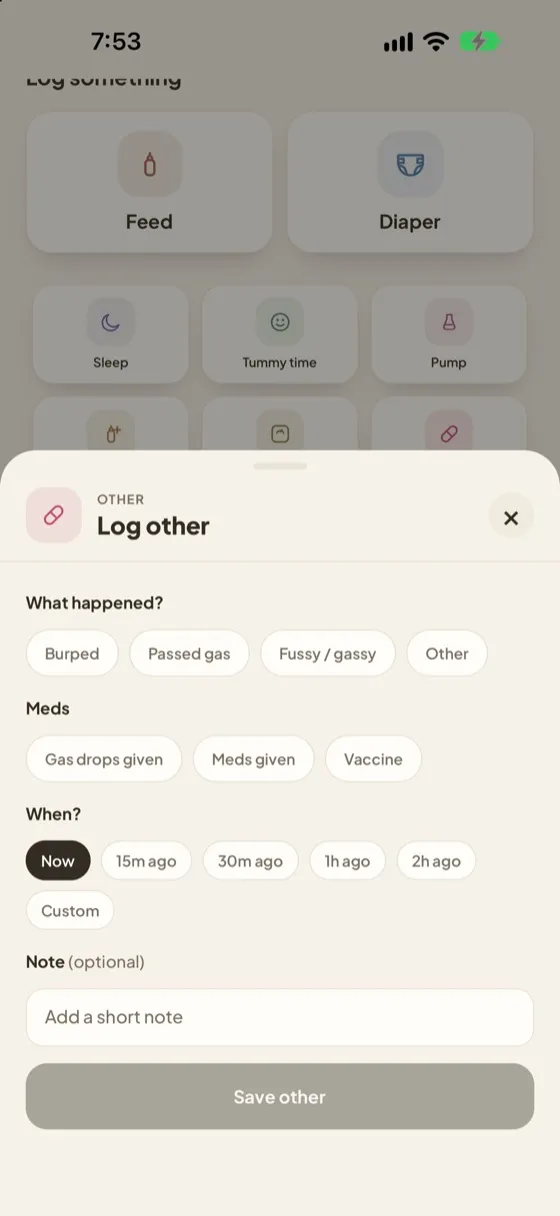
- Pump
- Choose Left, Right or Both, set the total amount, and save.
- Top up
- A small extra feed after the main one. Set the amount finished and save. It counts toward the day’s bottle total.
- Weight
- Set pounds and ounces and the date of the check. The earliest dated weight stays your baby’s starting weight.
- Other
- For anything else: Burped, Passed gas, Fussy / gassy or Other, plus meds such as Gas drops given, Meds given or Vaccine. Add a note for details.
Every form has When? Pick Now, 15m, 30m, 1h or 2h ago, or Custom to enter an exact date and time.
Editing a log
Fix mistakes in a couple of taps.
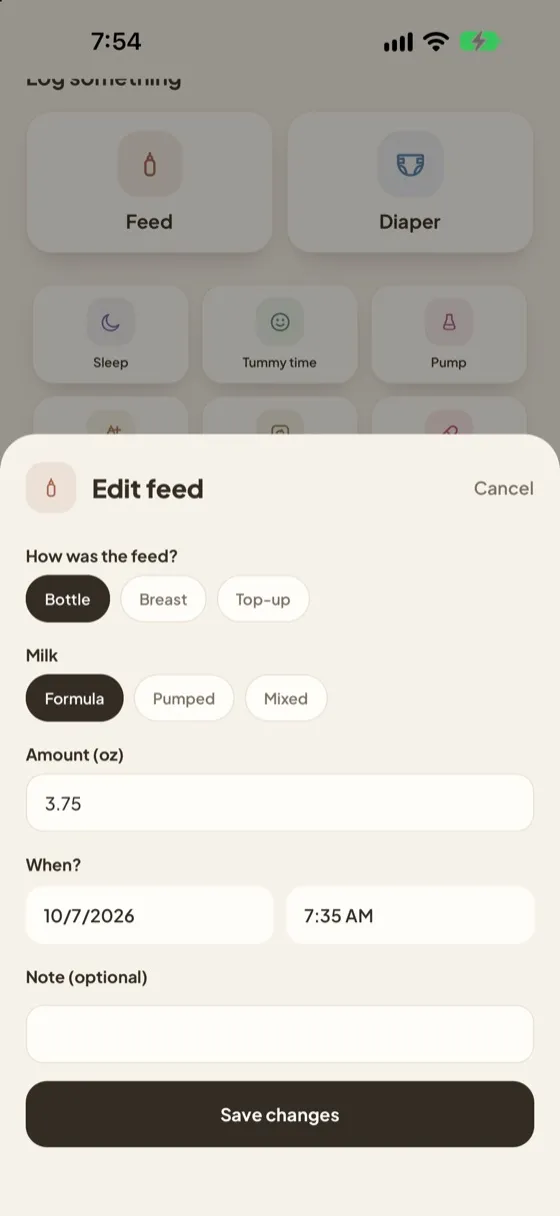
On Today or History, tap Edit next to any entry. Change the type, amount, time or note and tap Save changes. To remove a log, tap × and confirm.
History
Look back over any day.
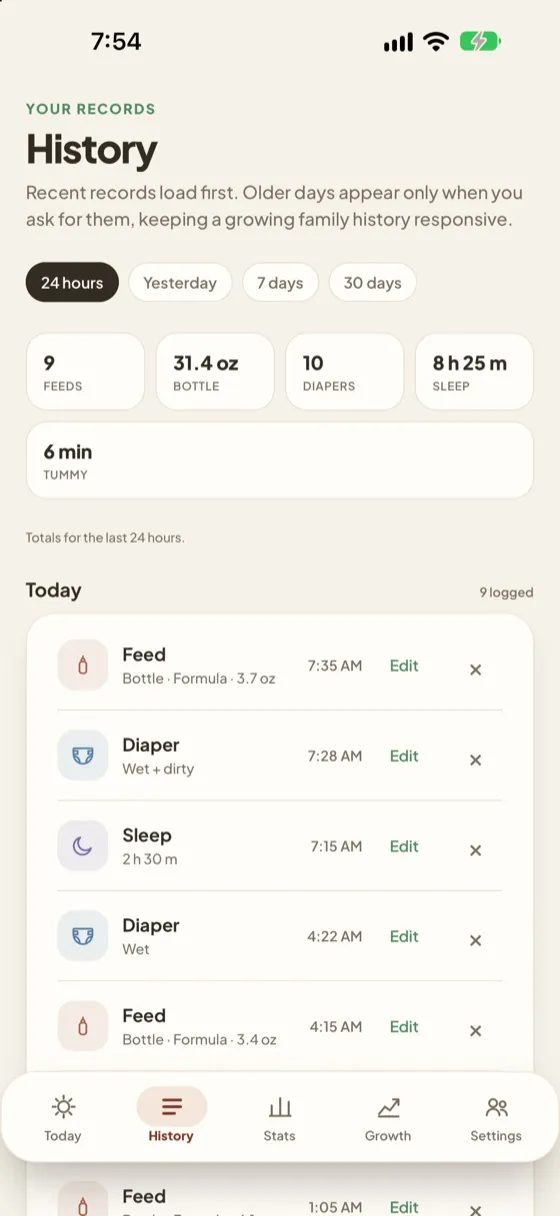
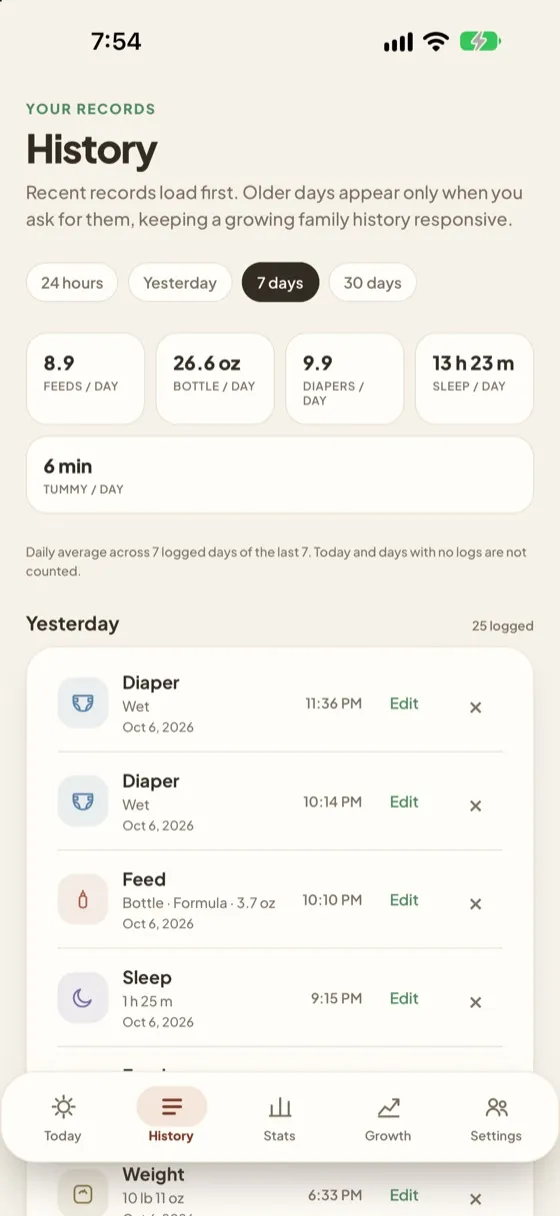
Choose a range: 24 hours, Yesterday, 7 days or 30 days. The cards at the top show totals, or daily averages for longer ranges. Below, every log is grouped by day. Older days load when you ask for them, so the app stays fast as your history grows.
Stats
See the patterns in your week.
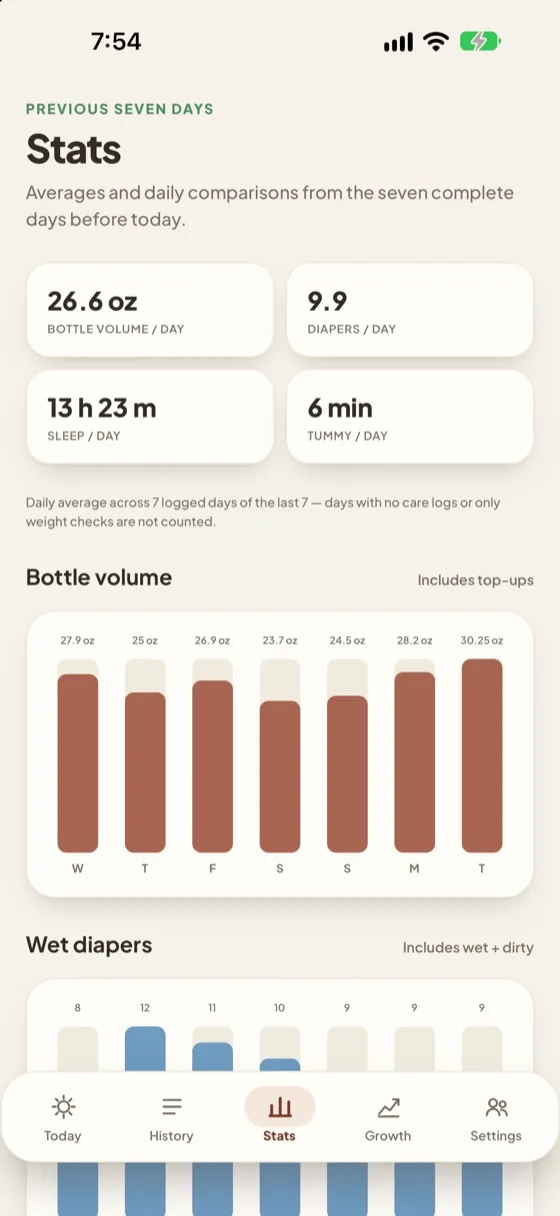
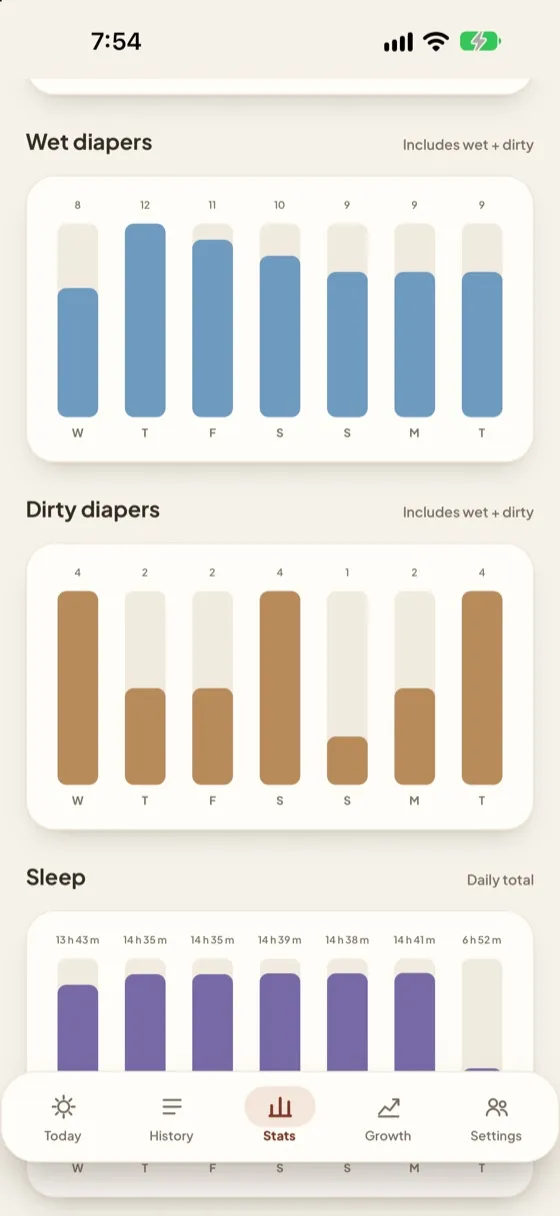
Daily averages from the seven complete days before today, with a bar chart for each: bottle volume (including top ups), wet diapers, dirty diapers, sleep, nursing and tummy time. Days with no care logs aren’t counted.
Growth
Follow progress one weight check at a time.
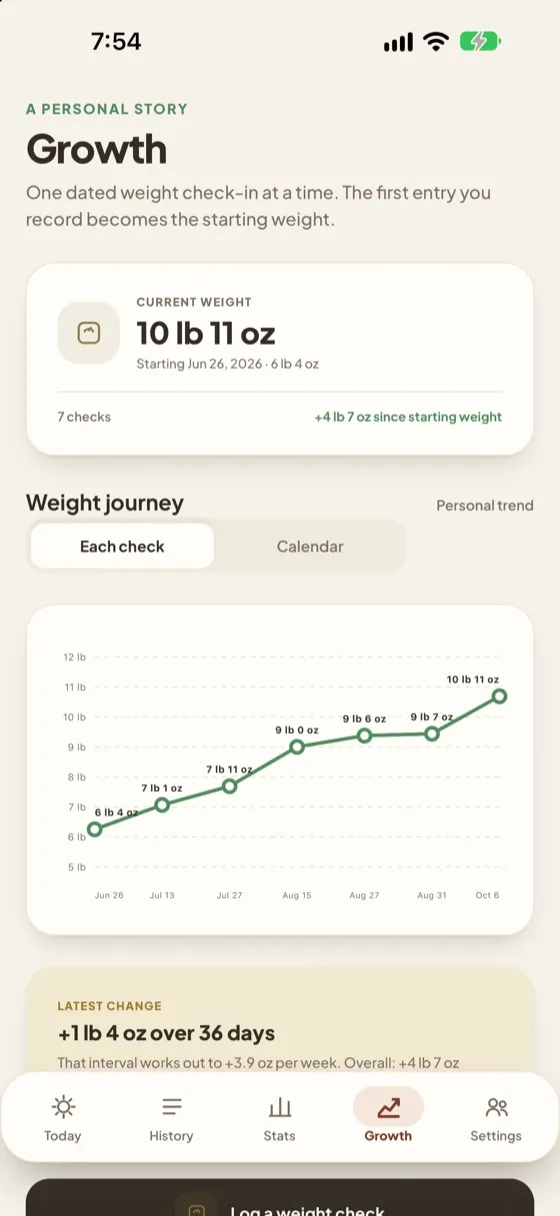
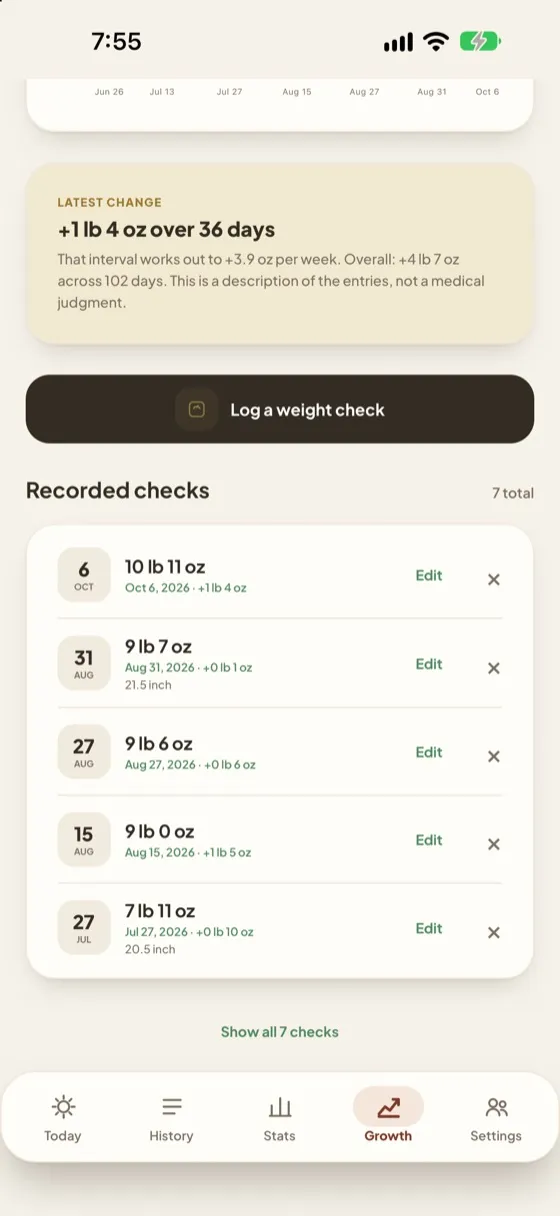
Your baby’s current weight, the change since the starting weight, and a chart of every check. Switch between Each check and Calendar spacing. Tap Log a weight check to add one, or Edit on any recorded check.
A personal history. Growth describes your own entries. It is not a medical growth chart or percentile assessment. Bring growth questions to your pediatrician.
Settings
Make Masiya yours.
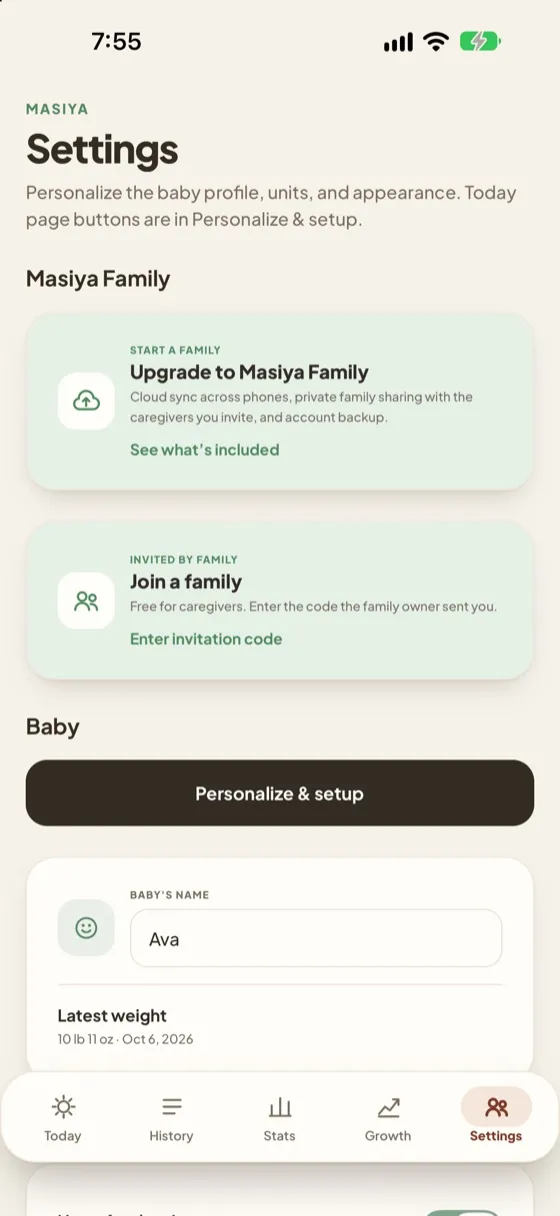
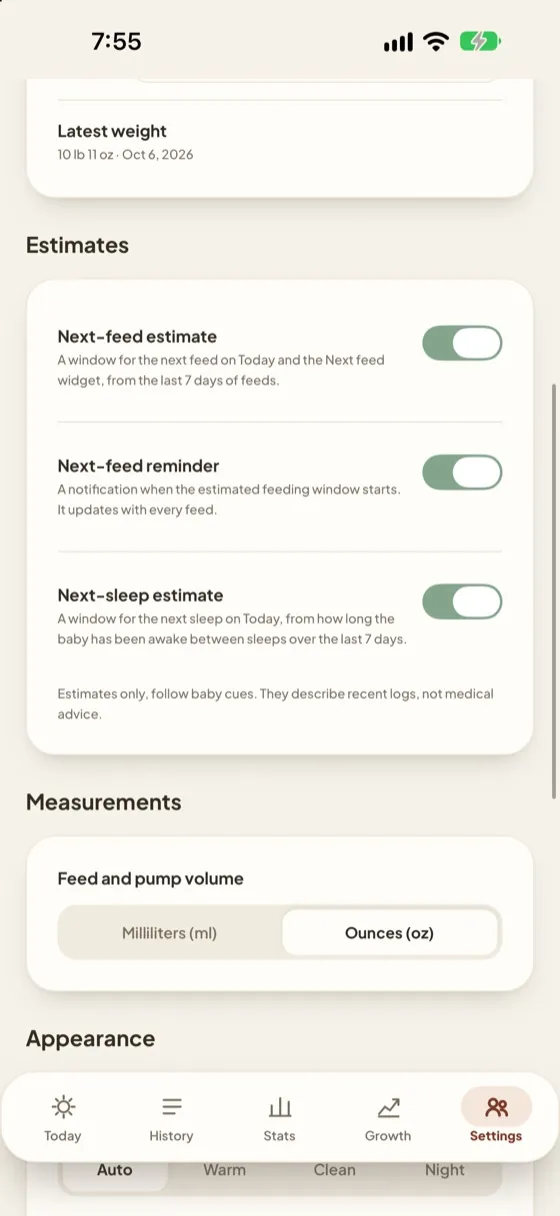
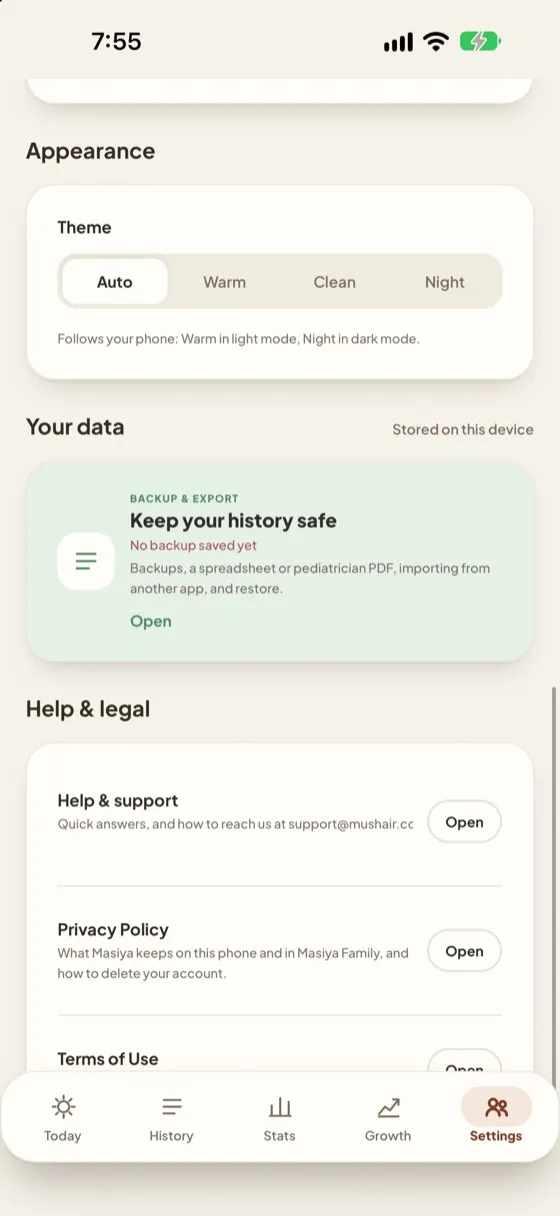
- Personalize & setup
- Reopens the welcome form: baby details, feeding style, units, Today buttons and the Apple feature guides.
- Baby
- Change your baby’s name and see the latest weight.
- Estimates
- Turn the next feed estimate, next feed reminder notification and next sleep estimate on or off.
- Measurements
- Milliliters or ounces for feeds and pumping.
- Appearance
- Auto (follows your phone), Warm, Clean or Night.
- Help & legal
- Help & support, the Privacy Policy and the Terms of Use.
Backups and your data
Keep your history safe.
Masiya keeps everything on your phone. Open Settings → Your data to back it up, share it or bring records in.
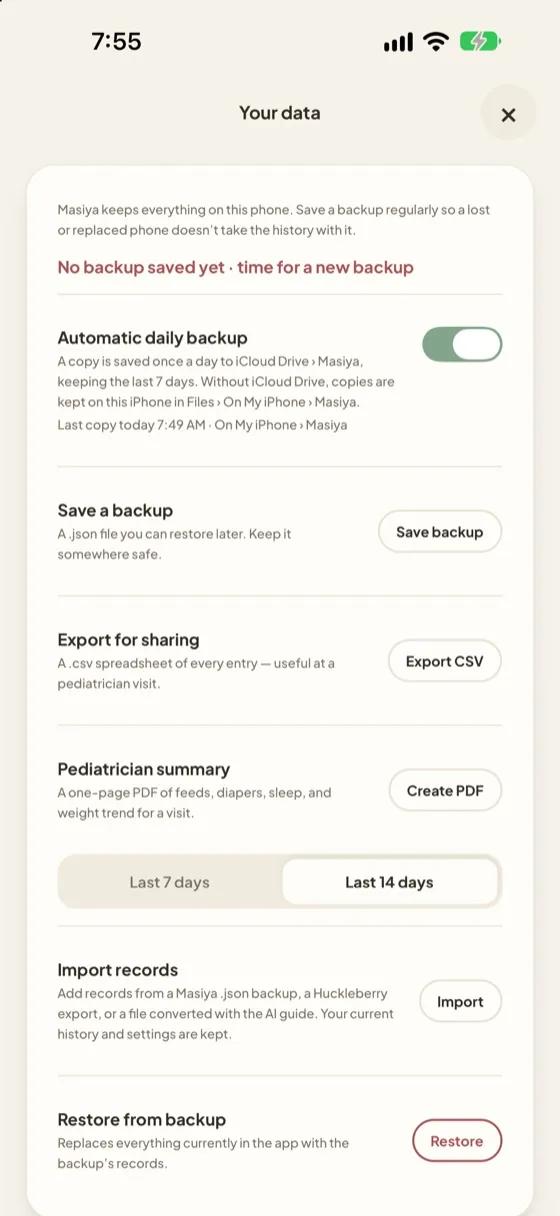
- Automatic daily backup
- When on, a copy is saved once a day to iCloud Drive › Masiya, keeping the last 7 days. Without iCloud Drive, copies stay on your iPhone in Files › On My iPhone › Masiya.
- Save a backup
- Saves a .json file you can restore later. Keep it somewhere safe, especially before changing phones.
- Export for sharing
- A .csv spreadsheet of every entry.
- Pediatrician summary
- A one page PDF of feeds, diapers, sleep and the weight trend for the last 7 or 14 days. Handy for checkups.
- Import records
- Add records from a Masiya backup, a Huckleberry export, or a file converted with the built in AI guide. Your current history and settings are kept, and you review everything before it’s added. Records that are already present are skipped.
- Restore from backup
- Replaces everything in the app with the backup’s records. Use it to move to a new phone.
Masiya Family
Care together, on every phone.
Masiya Family is the optional paid plan. Tracking, backups and exports on one phone stay free.
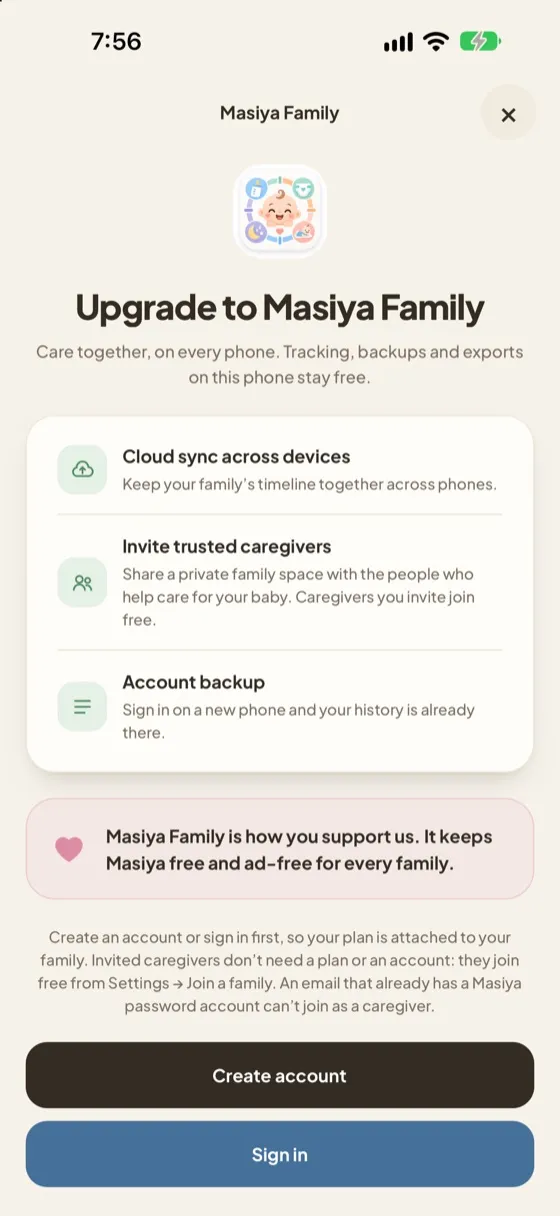
What it adds
- Cloud sync across devices. Your family’s timeline stays together across phones.
- Invite trusted caregivers. A private family space. Caregivers you invite join free.
- Account backup. Sign in on a new phone and your history is already there.
Start a family (owner)
- Go to Settings → Upgrade to Masiya Family → See what’s included.
- Tap Create account, or Sign in if you have one. Verify your email when asked.
- Subscribe, then open Account & family to create your family.
- Use Invite a caregiver by email. Each code works once, only for that email, and expires after 7 days.
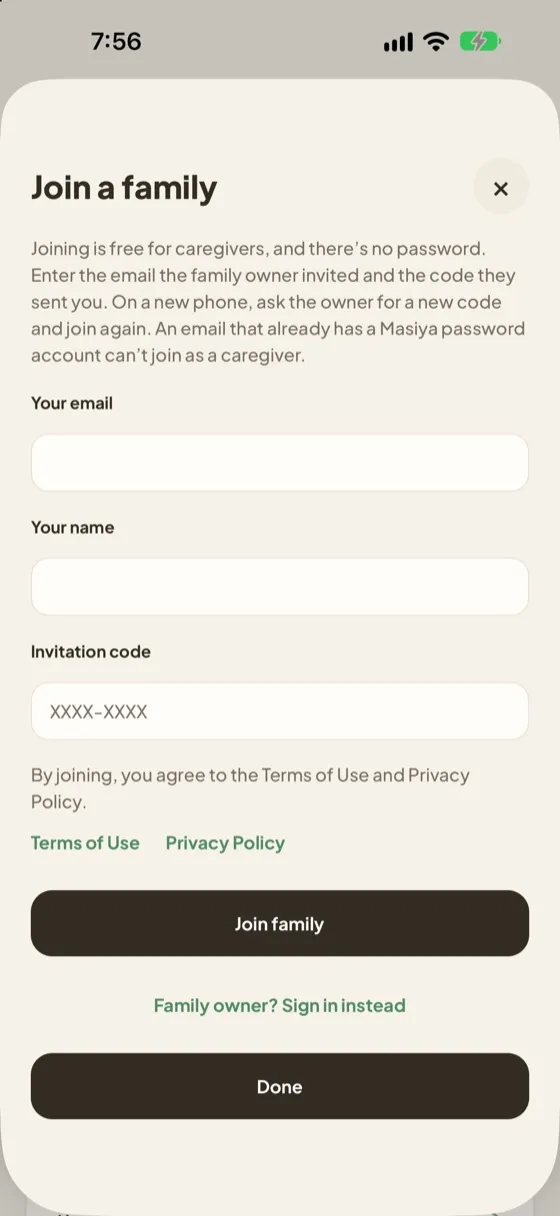
Join a family (caregiver)
- Go to Settings → Join a family → Enter invitation code.
- Enter the email the owner invited, your name, and the code.
- Tap Join family. No password needed.
Logging as. In a family, Today shows who is logging, and each entry shows which caregiver added it.
Apple Watch
Log from your wrist.
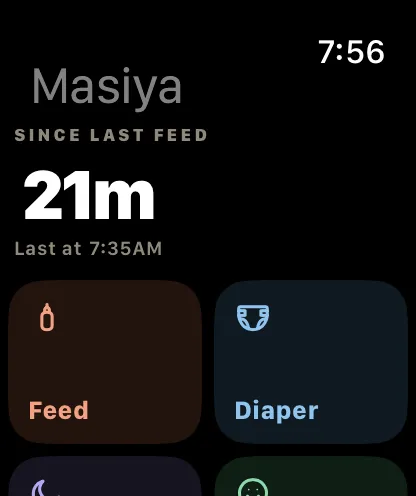
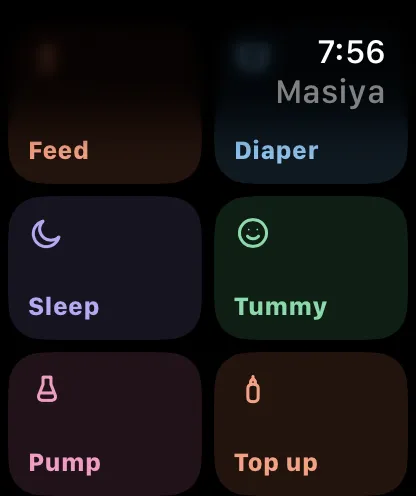
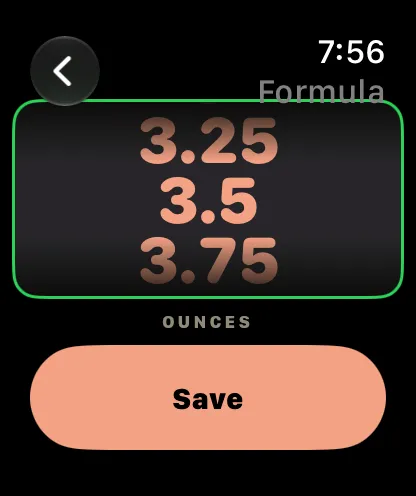
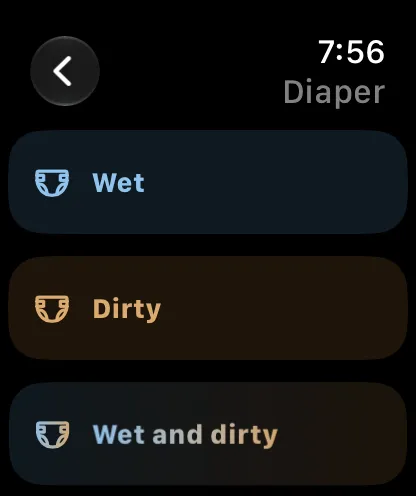
Perfect for when your hands are full. The Watch shows the buttons you turned on in the iPhone app.
Set up
- Open the Watch app on your iPhone and find Masiya under Available Apps. Install it if needed.
- Open Masiya on both devices to connect.
Log
- The top shows the time since the last feed.
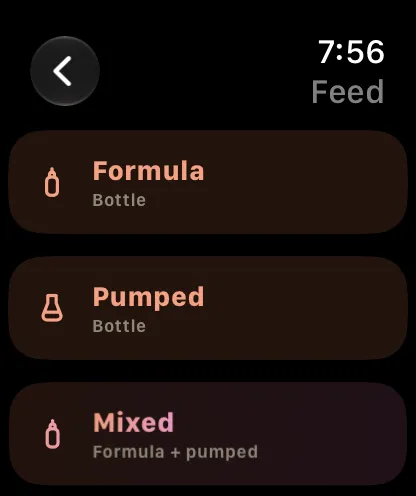
- Tap a tile, such as Feed, then pick the milk type.
- Turn the Digital Crown to set the amount and tap Save.
Works offline. Logs made while your iPhone is out of reach wait on the Watch until the phone can save them.
Complications. Add Next feed or Sleep to your watch face. Tap one to jump straight to logging.
Widgets, timers and Siri
More ways to log.
Home Screen widgets
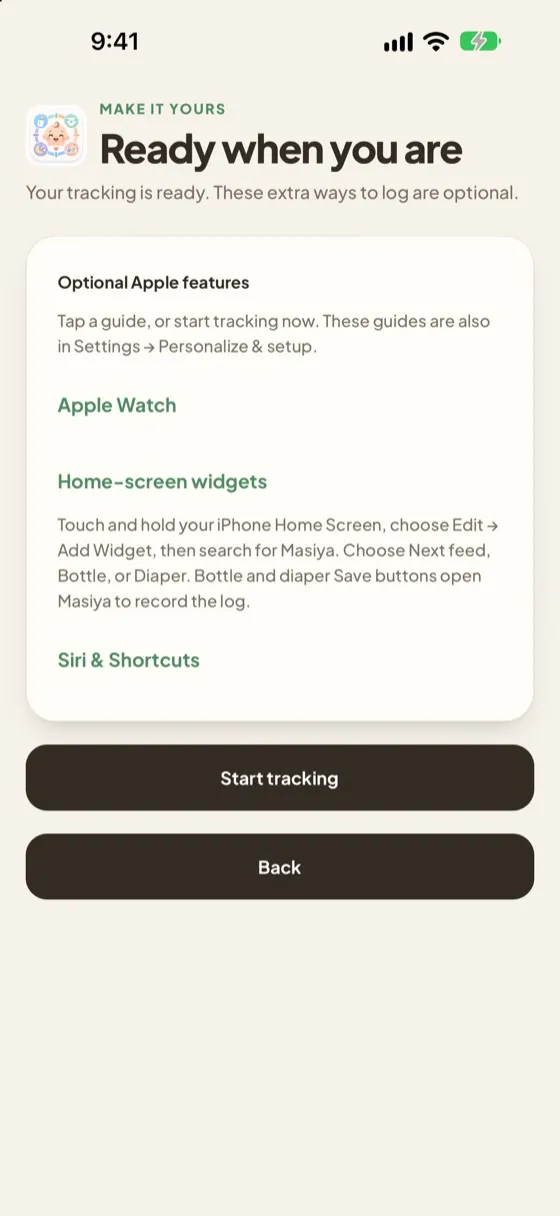
- Touch and hold your iPhone Home Screen, then choose Edit → Add Widget.
- Search for Masiya.
- Choose Next feed, Bottle, Diaper or Nap timer.
Bottle and Diaper Save buttons open Masiya to record the log.
Lock Screen timers
When a sleep, nursing or tummy time timer is running, it also appears on your Lock Screen, so you can see how long it has been without opening the app.
Siri & Shortcuts
- Open the Shortcuts app and create a shortcut.
- Search for Masiya actions. You can log a bottle or diaper, start or stop sleep and nursing, or ask when the last feed was.
- Run the shortcut by asking Siri for its name.
Find these guides in the app: Settings → Personalize & setup.
Tips and help
Good to know.
- Forgot to log?
- Use When? on any form to pick a past time, or Custom for an exact date and time.
- Logged the wrong thing?
- Tap Edit next to the entry on Today or History, or × to delete it.
- Estimates look off?
- They learn from the last 7 days and get steadier as you log. Until there’s enough history, Today says it’s still learning your baby’s rhythm.
- Hide a button you don’t use
- Settings → Personalize & setup → Today page buttons.
- Getting a new phone
- Save a backup and restore it on the new phone, or sign in to Masiya Family and your history is already there.
- Night feeds
- Choose the Night theme, or Auto to follow your phone’s dark mode.
- Your privacy
- Without an account, everything stays on your phone. With Masiya Family, it’s shared only with the caregivers you invite.
Estimates only. Masiya describes your recent logs. It doesn’t give medical advice. Always follow your baby’s cues and ask your pediatrician about health questions.